Create a custom sticker pack
Start in MojiKit with a selfie, pet photo, avatar, mascot, or character image that you want to turn into stickers.
Guide
A mobile-focused guide for creating custom stickers from photos, saving a pack, and using those stickers in iPhone photo and chat workflows.
Short answer
Learn how to add a sticker to a photo on iPhone and how MojiKit helps create custom sticker packs from photos, avatars, pets, and characters.
Start in MojiKit with a selfie, pet photo, avatar, mascot, or character image that you want to turn into stickers.
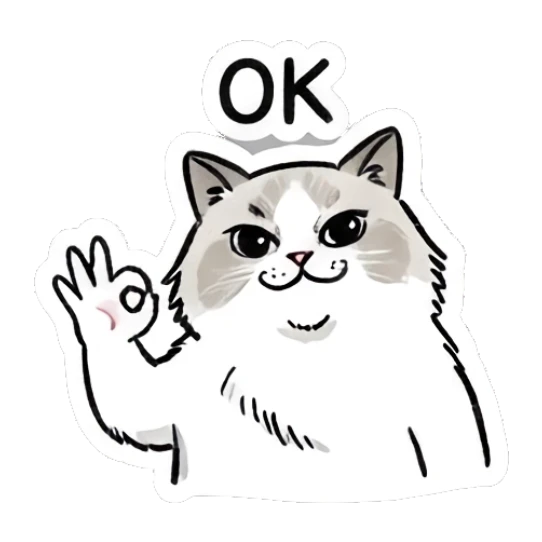
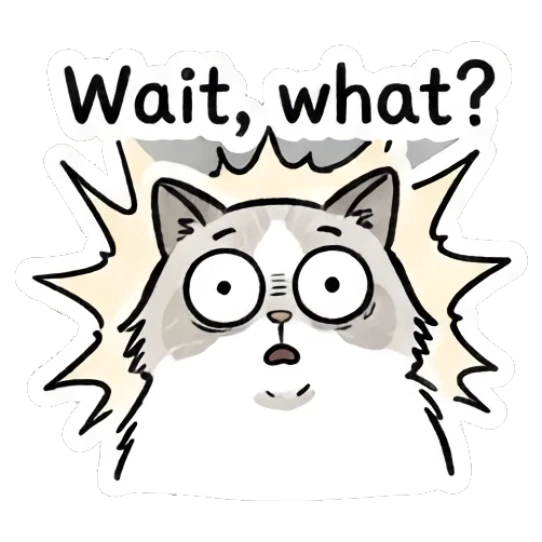
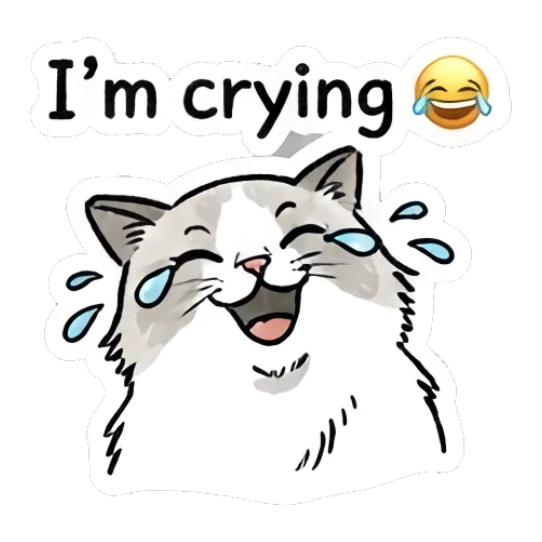
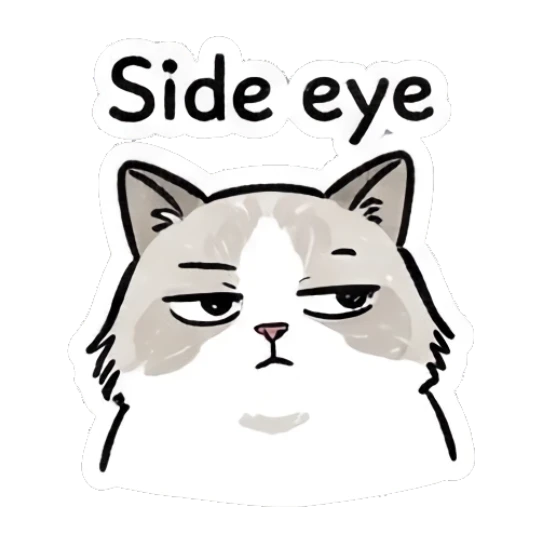
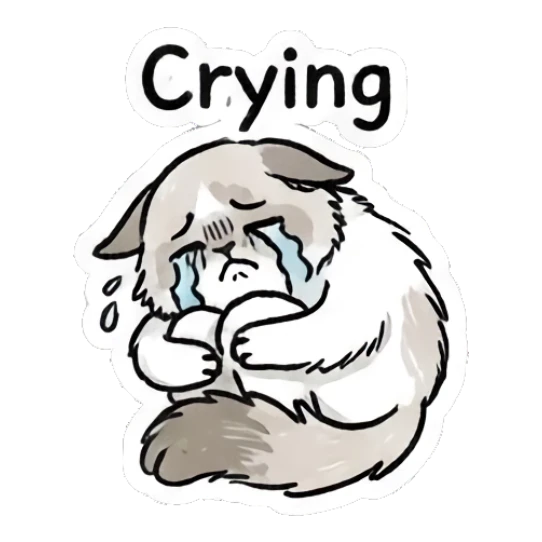
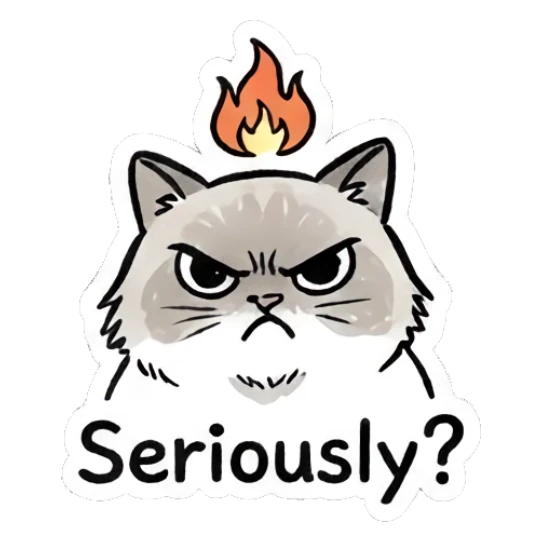
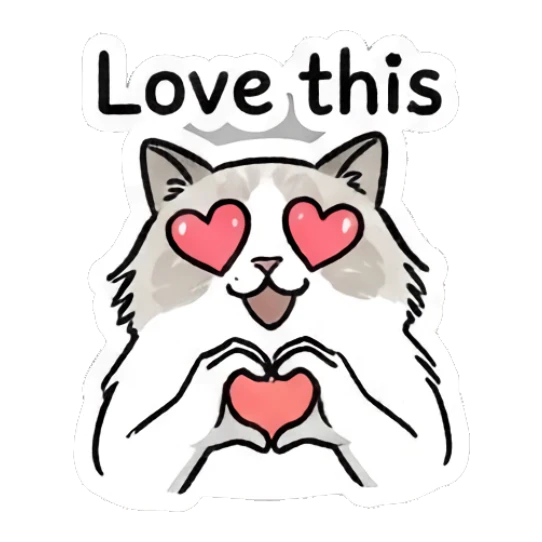
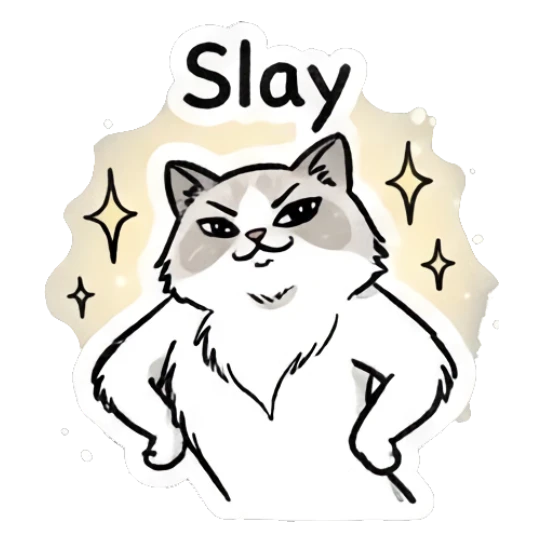
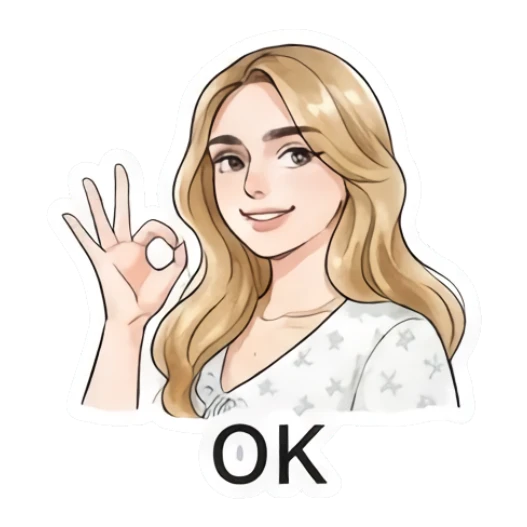
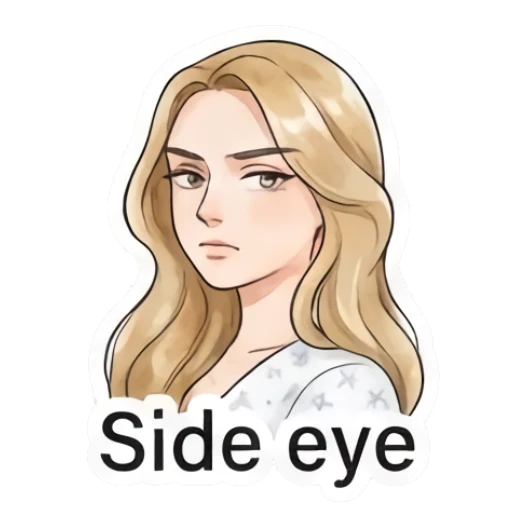
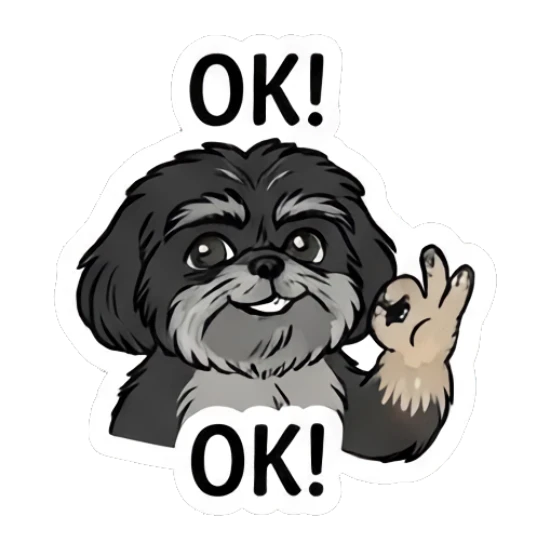
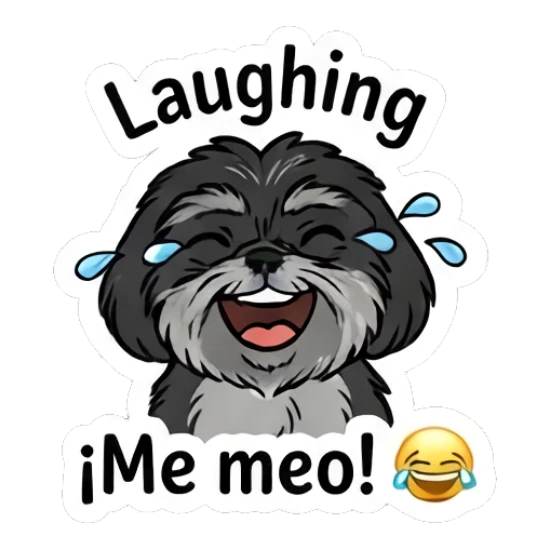
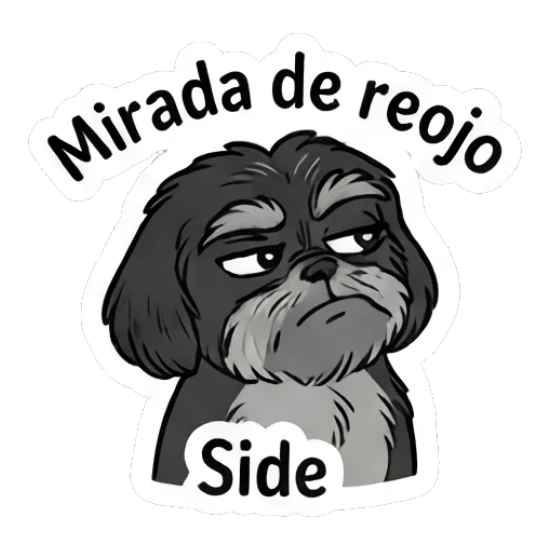
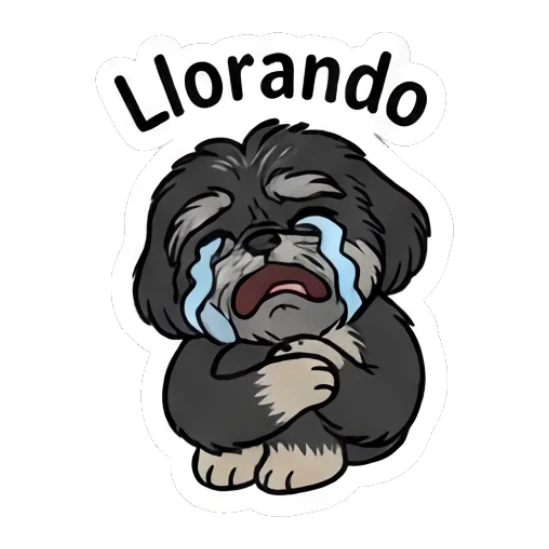
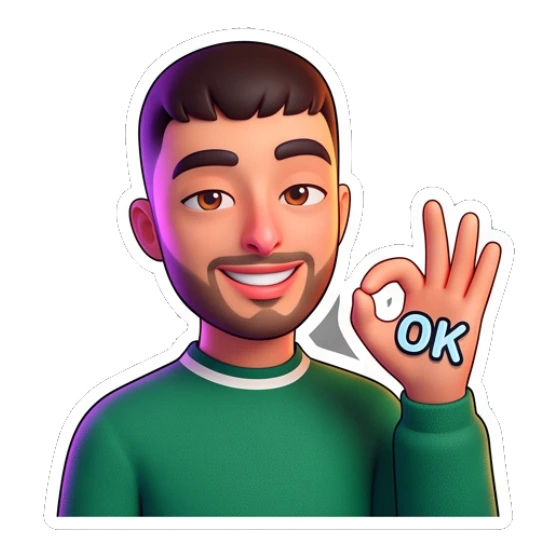
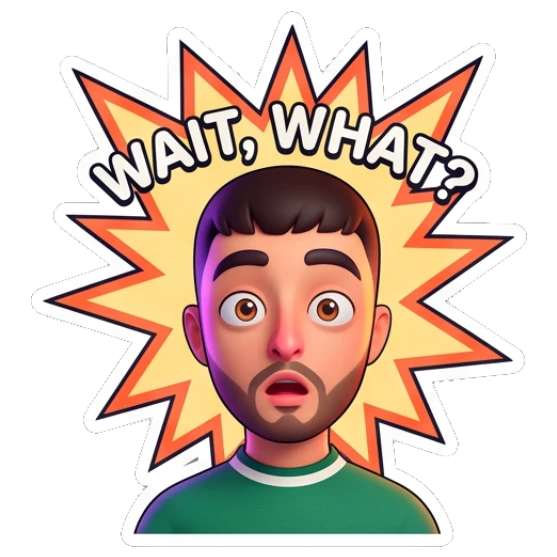
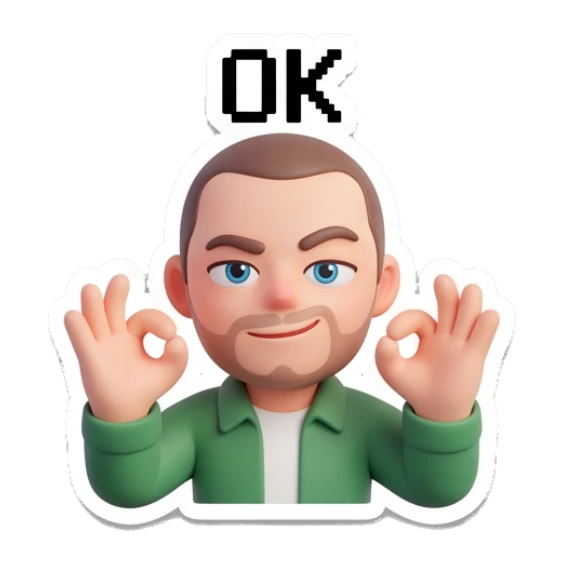
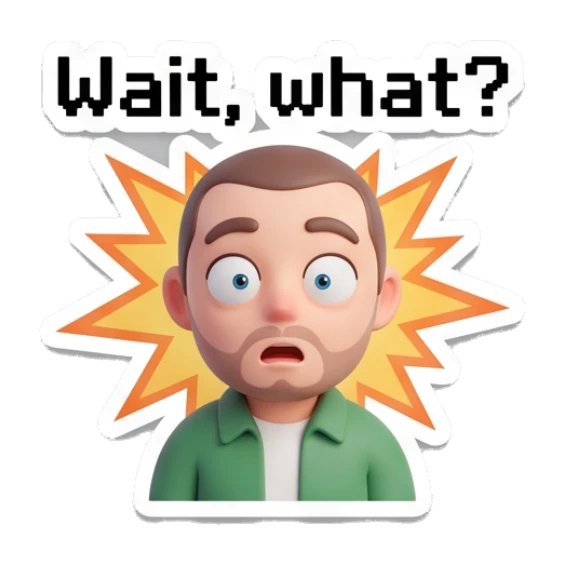
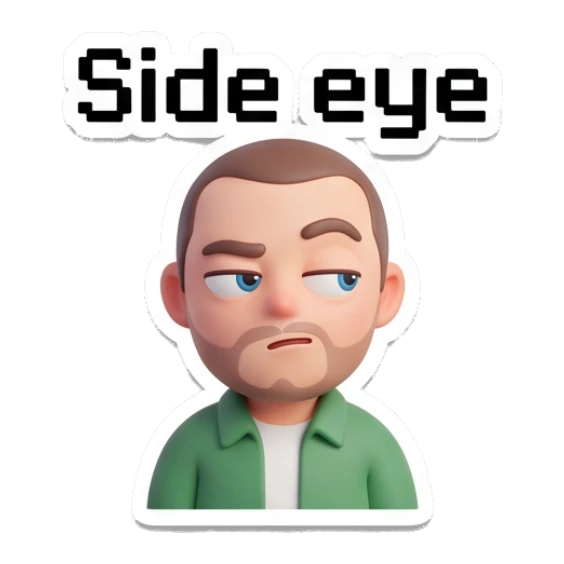
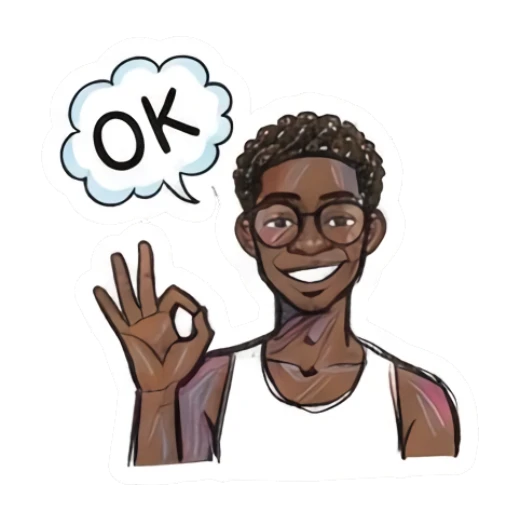
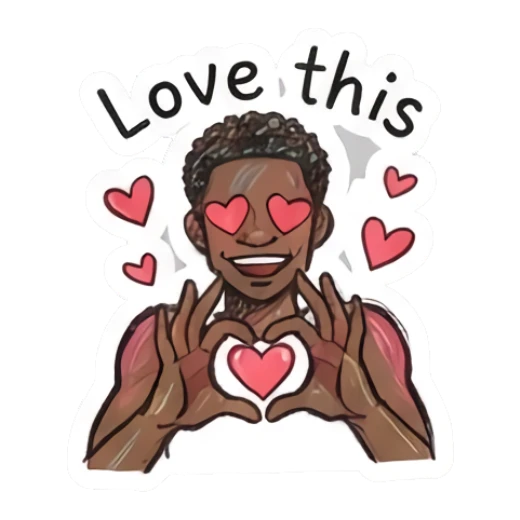
Look for clear expressions like OK, shocked, crying, love, laughing, angry, and thinking. These are easiest to reuse in iPhone chats.
Open the pack in MojiKit and save the stickers you want to keep or export.
Export or share the saved stickers through the mobile apps you already use for photos, messages, and social posts.
If the first pack is close but not perfect, generate another version from the same subject with clearer emotions or simpler captions.
Details
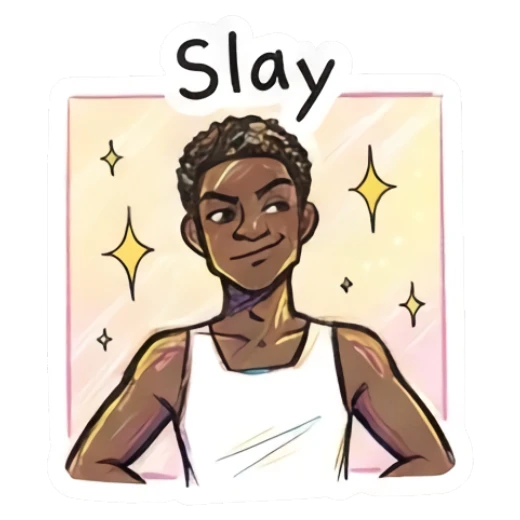
MojiKit is useful when you want a full custom sticker pack instead of a single iPhone cutout. It is especially helpful for selfie stickers, pet stickers, avatar stickers, and character reaction packs.
The sticker should have a clean silhouette, readable expression, and simple caption. If the sticker looks clear in a small message bubble, it will usually work better on photos too.
Think about how you actually use images on your phone: friend replies, photo edits, stories, birthday messages, group chats, and quick reactions. A useful pack should cover several of those moments.
Avoid
For iPhone workflows, a small set of reactions is usually more useful than a single sticker.
Long text can look fine on desktop but become hard to read on a phone. Short phrases work better.
Always preview the pack before saving. Some stickers that look fun at large size may not read well in mobile chats.
Next searches
Continue from this guide into sticker maker pages, download searches, and related MojiKit topics.
Create expressive AI sticker packs from characters, selfies, pets, mascots, and photos with MojiKit.
Download MojiKit, a sticker maker app for creating AI sticker packs from photos and characters.
Make complete sticker packs from photos, pets, characters, avatars, and mascots with MojiKit.















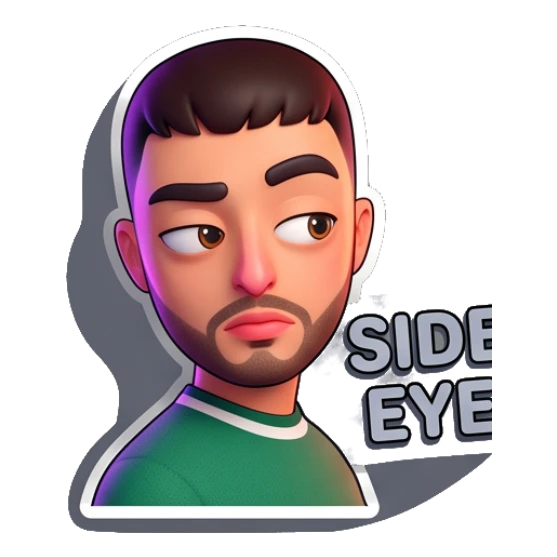

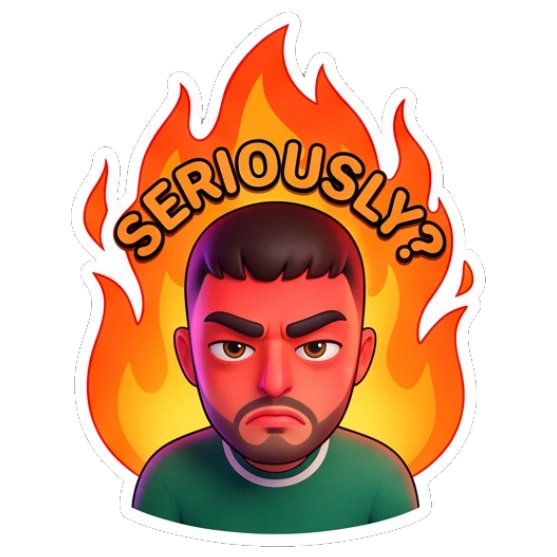
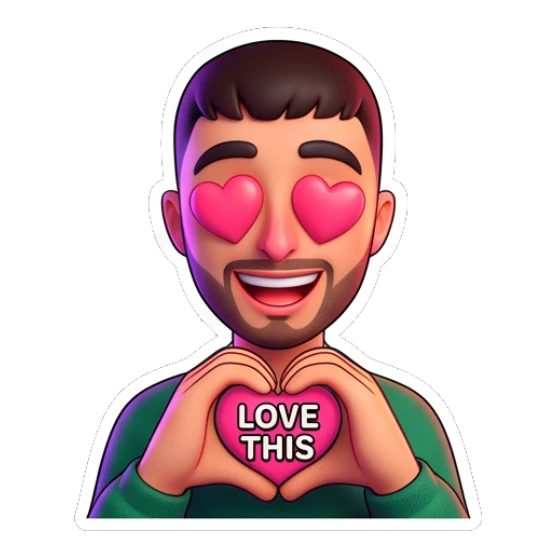
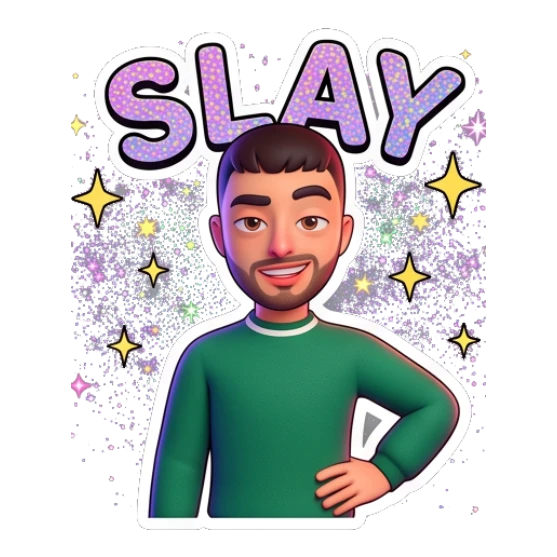






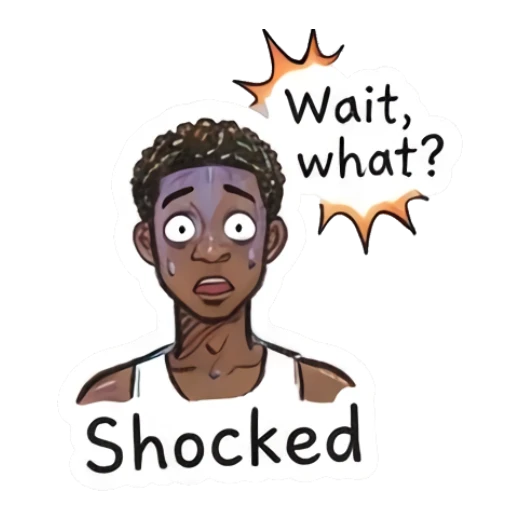
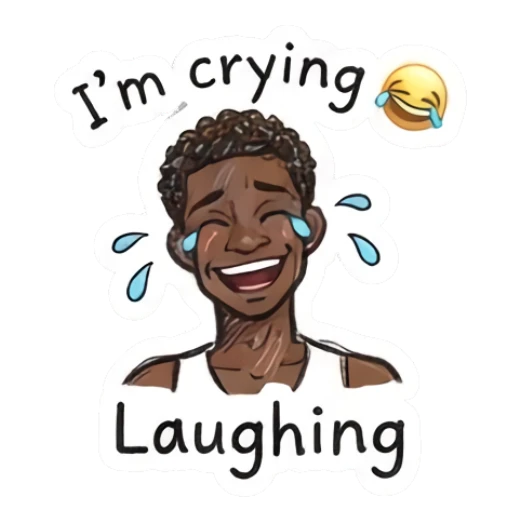

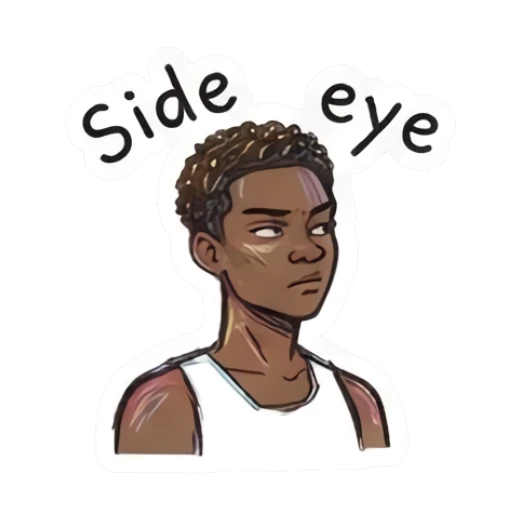

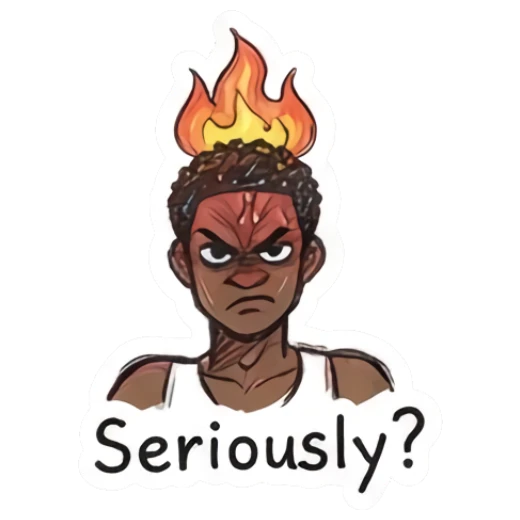
Yes. MojiKit is available through the App Store.
Yes. MojiKit focuses on generating full sticker packs rather than a single sticker.
MojiKit creates image stickers that are designed for mobile sharing and chat workflows.
Clean cutouts and readable silhouettes help stickers look better, especially when placed over photos or sent in chats.
Scan with your phone or choose your app store to download MojiKit.